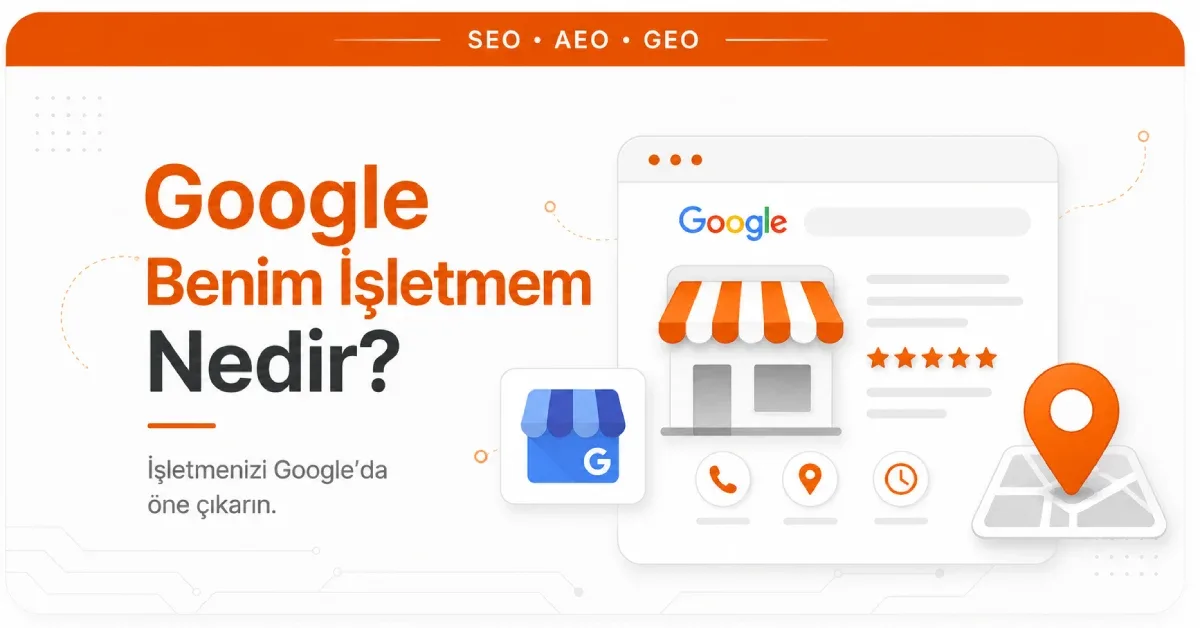
A business owner who types Google My Business into Google expecting to log in won't find a dashboard with that name. The product is still there, still free and still working. Two things have changed: it was renamed Google Business Profile (in Turkish, Google İşletme Profili), and its management was moved out of a separate interface and into Google Search and Google Maps.
The old name, however, survived in an unexpected place. Google's own verification guidelines tell you to find your profile by typing your business name and city into the Search box, or simply the phrase "my business" (in Turkish, "benim işletmem"). So the old brand name stopped being a product page and became a search shortcut. The dashboard you are looking for hasn't disappeared; it now opens right inside the search results.
What is the difference between Google My Business and Google Business Profile?
They are the same product. Google My Business is the old name and Google Business Profile is the current one; Google's own help center now uses the new name. The difference isn't functional; it's a matter of name and location. What the service does has stayed the same, but where you manage it has changed.
Here is what the product does: it gathers your business name, address, phone number, opening hours, category, photos and customer reviews into a single card and shows that card in Google Search and Google Maps. Adding a profile, claiming ownership and getting it verified are free.
There is one more point people often get confused about. A Business Profile is your business's record on Google, not a page that replaces your website. Without a profile, you won't appear in the business listings in local search results; on the other hand, a profile on its own doesn't replace the content and conversion space a website provides. They are two separate assets that feed each other.
You can access your profile from three places
Most people running a navigational search are looking for a login page. Today there is no single "login" screen; there are three entry points, depending on the size of the business.
- Google Search: after signing in to the Google Account connected to the profile, search for your business name and city, or simply "my business." In the management card that appears, you can make and save changes under Edit profile.
- The Google Maps app: open the app and tap the Business tab at the bottom right, then Edit profile.
- Business Profile Manager (business.google.com): the bulk management screen for businesses with multiple locations. This is where you select and mark locations in bulk from a list.
Two details explain most "I can't find my dashboard" complaints. First, the edit card only appears when you are signed in to the Google Account connected to the profile; signed in with a different account, the profile looks like an ordinary search result. Second, you don't need to look for a separate app to install to manage the profile; Google's current guidelines describe editing only through Search and Maps. Some management features may differ between Search and Maps and depending on the device's operating system.
Not every business can create a profile
This is the requirement most Turkish-language sources skip: Business Profile is not an open registration system. Google's eligibility criterion fits into one sentence: the business must make in-person contact with its customers during its stated hours.
The main cases that fall outside this criterion and cannot create a profile:
- Businesses that operate only online. E-commerce stores with a virtual storefront are in this group too and cannot be verified.
- Entities with no physical service point, such as brands, organizations and artists.
- Businesses whose address is listed as a PO box.
- Rental or for-sale properties such as vacation rentals, model homes or vacant apartments. Their sales and leasing offices are eligible for verification.
- Lead generation agents and companies.
- Services, classes or meetings held at a location you don't own or have no authority to use.
The rule also has defined exceptions. ATMs, video rental kiosks and express mail drop boxes are eligible as long as contact information is added so customers can get help. Seasonal businesses, such as an ice skating rink that only opens in winter, can create a profile provided they place permanent signage at their location.
Businesses that go to their customers (plumbers, locksmiths, mobile repair services) create a profile as a service-area business. Two rules are decisive here: the business address is hidden from customers, and the service area does not extend beyond roughly two hours of driving time from where the business is based. Businesses offering age-restricted products or services (such as alcohol or firearms) are not allowed to operate as service-area businesses without a physical address.
Creating a profile and claiming one are not the same
Adding a business to Google for the first time and taking over a listing that already appears on Maps are two different processes. To find out which situation you are in, first search for your business name and city on Maps.
| Situation | Starting point | What to do |
|---|---|---|
| The business doesn't appear in Search or Maps at all | business.google.com/add | Start the "Add your business to Google" step, enter the business details, then follow the verification option offered to you. |
| The business appears but isn't verified | Google Maps (desktop or mobile app) | Find the business, choose "Claim this business" and then "Manage now," and proceed to verification. |
| Someone else has verified the profile | The current owner | Request that ownership be transferred to you. If you get no response, the ownership dispute process applies. |
What the three scenarios have in common is verification. To edit business information and interact with customers, the profile must be verified; verification is Google's recognition of your authority to represent the business. You also need a Google Account to register, and that account doesn't have to be a Gmail address.
You don't choose the verification method
Contrary to what is commonly said, the verification method is not a menu of choices. Google automatically determines which methods to offer, and that determination can't be changed. The options you see vary with your business type, public information, region and opening hours. In some cases, the business is asked to verify with more than one method.
| Method | How it works | Critical detail |
|---|---|---|
| Video recording | You upload a video showing the location, the business and your management authority. | If the business is eligible, this is the method Google recommends first. |
| Phone or text message | You enter the code from a call or text sent to the business number into the profile. | The code isn't shared with automated voice response systems; the call must be answered by a person. |
| You follow the steps sent to the address shown on the verification screen. | You must have access to the email address shown on screen. | |
| Live video call | In a live call with a support representative, you show the location and your authority on camera. | Only possible during the business's opening hours and not offered to every business. |
| Postcard | You enter the five-digit code sent to the business address into the profile. | The code usually arrives within 14 days and expires after 30 days. |
Two mistakes most often break the postcard route. If the business name, address or category is edited while you wait for the code, the code won't work when it arrives. And if you get impatient and request a new code, the one already in the mail is invalidated and the process starts over.
What you are expected to show in the video and live call routes falls under three headings: location (street signs, building number, recognizable nearby landmarks), the business itself (products, branded equipment, the workspace, business cards, branded clothing or vehicles) and management authority (access to employee-only areas, the cash register, kitchen or storage, or documents such as a license or invoice matching the business name). For service-area businesses, the same three are shown from the area served and the equipment used rather than from a fixed storefront.
Once verification is submitted, the review can take up to five business days. Verification can be instant in two cases: if you have verified your website through Google Search Console, or if you use bulk verification. When the process is complete, you receive a confirmation email.
On the security side, one rule is enough: Google will never ask you for your verification code. Don't share the code with anyone, including people who manage the profile on your behalf.
Which fields are in the profile, and which ones change outcomes?
Not all profile fields carry equal weight. Some are hard rules; others directly affect visibility.
- Business name: entered as it appears on your signage, stationery and other branding. Changing the name after verification may require re-verification.
- Category: you can choose up to nine categories, and the first one becomes the primary category. All locations of a business must share the same primary category. Categories can't be used as a keyword field, and you can't choose the categories of other businesses near you.
- Address and pin location: if there is a place customers can visit, enter the full address; for service-area businesses, the address is hidden.
- Opening hours: alongside regular hours, special hours are set for holidays and short-term changes.
- Photos and videos, attributes, description: attributes such as parking or Wi-Fi and a description of your products and services complete the profile.
- Reviews: shown alongside the profile in Search and Maps.
The one criterion that applies to all of these fields is consistency: the name, address and phone number in your profile must match what you have written on your website and in other directories. A mismatch between these details is the most common silent error in local visibility; we cover it in detail in our article on NAP consistency.
There is also a lesser-known mechanism. To keep your profile current, Google may occasionally send an automated call, text message or WhatsApp message to your verified number asking you to confirm information, and your answers may be used to update the profile. You can review information collected this way on the Info collected screen in your profile, see the source and collection date of each item and delete anything incorrect. This feature isn't available in every region, language and business category. Edits you make to the profile are reviewed before going live, so a change not appearing immediately doesn't by itself mean something is wrong.
Local ranking is built on three signals
The visibility of a Business Profile is determined by three factors Google has disclosed, and business owners don't have equal control over all three.
- Relevance: how well the profile matches what the user is searching for. Complete, detailed business information makes it easier for Google to match the business to the right queries. This is the direct payoff of filling in profile fields.
- Distance: how far the business is from the searcher's location. This is the only factor you can't change. It is also why the goal of "ranking first for every search" has no technical meaning: distance is recalculated for each user.
- Prominence: how well known the business is. Google ties this factor to information such as how many websites link to the business and how many reviews it has; more reviews and positive ratings can contribute to local ranking.
The key distinction here is this: relevance is earned inside the profile, prominence is earned outside it. Filling in profile fields perfectly strengthens matching but doesn't change how well known the business is. Prominence is a separate effort that moves forward through your website, mentions and a steady flow of reviews; this effort as a whole is called local SEO. For a detailed look at getting listed in map results, see Google Maps SEO.
One rule for reviews: no incentives
Because reviews are the most visible part of a profile, they are also where people push the rules hardest. Google's contribution policy treats the following as fake engagement and rating manipulation:
- Offering payment, discounts, free products or services in exchange for writing a review or changing or removing a negative review.
- Discouraging or prohibiting negative reviews, or asking customers specifically for positive reviews.
- Requiring or pressuring customers to rate or review the business while they are on site.
- An unusual volume or pattern of reviews indicating an attempt to change a place's rating.
These violations can lead to reviews being removed and to restrictions on the profile. That is the real risk of services that promise reviews in bulk: the gain is temporary, the restriction lasts. The permitted behavior, and one of Google's own recommendations for local ranking, is responding to reviews.
Closing is not deleting
When someone closes their business or moves, their first reflex is to delete the listing. But there are three separate situations with different outcomes.
The temporarily closed label is used when the business has been closed for more than seven days, is out of season, or the length of the closure is uncertain. For closures of seven days or less, special hours are the right field. This label lets customers find the business and see that the closure is temporary, sparing them a wasted trip. It has a cost: for broad queries, temporarily closed businesses may drop behind open ones. How big that effect is depends on the business category, the type of query and how many businesses in the same result are closed.
The permanently closed label is set from the opening hours field and does not delete the listing from the map. The profile may continue to appear in Search and Maps for users searching for the business by name, clearly marked as closed. So a business that sets this label expecting "deletion" is surprised to see the listing still visible. If the label was set by mistake, the location can be reopened.
Losing ownership is the third situation, and it usually happens unintentionally. Ownership can be revoked for reasons such as not signing in to the account for a long time, the business telling Google that you or your agency no longer have authority to manage it, not responding to emails sent to verify your connection, the profile being deleted, or another Google product the profile was created through being suspended.
This last point has a direct consequence for businesses that work with an agency. A third party that manages the profile on your behalf is, in Google's definition, an authorized representative and cannot act without the business owner's explicit permission. When you change agencies or consultants, the first job is not producing new content but properly transferring access.
Frequently Asked Questions
Where can I download the Google My Business app?
You don't need to look for a separate My Business app to install. Google's current guidelines describe editing the profile through Google Search and the "Business" tab of the Google Maps app. The bulk management screen for multi-location businesses is at business.google.com.
How long does verification take?
Once verification is submitted, the review can take up to five business days. On the postcard route, the code usually arrives within 14 days and must be used within 30 days of receipt. If you have a verified site property in Search Console, the process can be instant.
Can a store that sells only online create a profile?
No. Businesses that don't serve customers in person and operate only online are not eligible for a Business Profile and cannot be verified. Businesses that serve customers at the customer's location, however, can create a profile as a service-area business with their address hidden.
Does adding a city or service name to the business name help rankings?
The name field isn't designed for that. The business name is entered as it appears on your signage and branding, and categories can't be used as a keyword field either. Changing the name after verification may also require re-verification, so trying a shortcut can set the process back.
Can I edit information without verifying the profile?
Google requires verification to edit business information and interact with customers. An unverified listing may appear on Maps, but to have a say over its information you first need to claim and verify the profile.