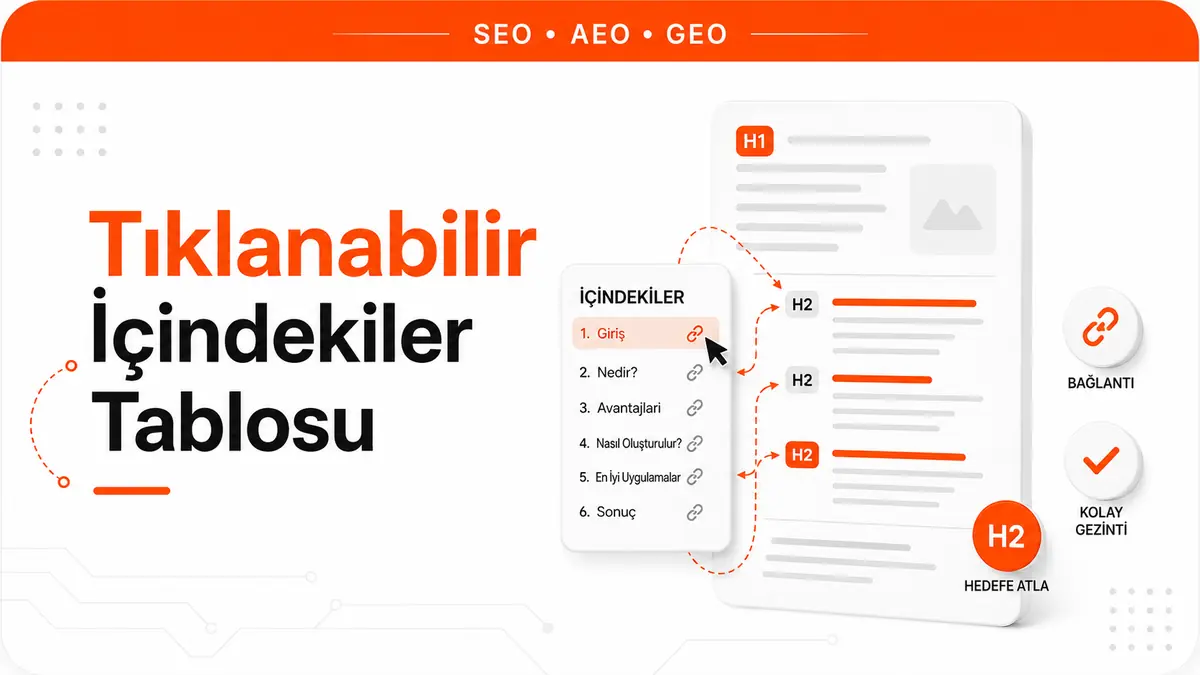
A clickable table of contents is a navigation component that uses in-page anchor links to take the reader directly to the section they want. According to 2026 data, long-form pages with a table of contents generate on average 28 percent longer session durations than pages without one. It is a critical part of technical SEO infrastructure, both for user experience and for sitelink generation in search results.
The Indirect Effect of In-Page Navigation on Ranking Signals
Search engines do not treat a table of contents as a standalone ranking factor. Its indirect effects, however, are measurable. When readers reach the section they need quickly, time on page goes up, pogo-sticking goes down and scroll depth increases. These engagement metrics feed into the algorithm as part of page experience signals.
A more tangible benefit shows up in the SERP as sitelinks. Anchor links can appear as "jump to" links beneath the page title in search results. These sitelinks expand the page's visual footprint in the SERP and raise organic click-through rate. Sitelinks are generated automatically and can't be controlled directly, but properly structured anchor links lay the technical groundwork for them.
Core Components of an HTML Anchor Link Structure
A table of contents consists of two parts: the navigation list and the id attributes on the target headings. Each link in the navigation list points to the id of the relevant heading using a fragment identifier (#). When the link is clicked, the browser scrolls the page to the target element.
The basic HTML structure looks like this:
<nav class="toc" aria-label="Table of contents">
  <ol>
    <li><a href="#technical-seo-basics">Technical SEO Basics</a></li>
    <li><a href="#crawl-budget-management">Crawl Budget Management</a></li>
    <li><a href="#structured-data-integration">Structured Data Integration</a></li>
  </ol>
</nav>

<h2 id="technical-seo-basics">Technical SEO Basics</h2>
<h2 id="crawl-budget-management">Crawl Budget Management</h2>
<h2 id="structured-data-integration">Structured Data Integration</h2>
The aria-label="Table of contents" attribute tells screen readers what the block is for. An ordered list (<ol>) conveys the hierarchical order of the headings semantically. An unordered list (<ul>) is also acceptable, but a numbered structure helps readers keep track of where they are in long content.
Correct ID Attribute Format and Slug Rules
The id value of every anchor target should follow URL slug conventions. Non-ASCII characters (such as the Turkish letters ç, ğ, ı, ö, ş, ü) should be avoided, spaces should be replaced with hyphens and every character should be lowercase. This format ensures the fragment identifier works consistently across browsers.
Wrong format: id="Structured Data & Schema". Correct format: id="structured-data-schema". Special characters (&, @, !, ?) should not be used in an id attribute because they cause problems with URL encoding. A JavaScript function that generates slugs automatically standardizes the process:
function generateSlug(text) {
  return text
    .toLowerCase()
    .replace(/ç/g, 'c').replace(/ğ/g, 'g').replace(/ı/g, 'i')
    .replace(/ö/g, 'o').replace(/ş/g, 's').replace(/ü/g, 'u')
    .replace(/[^a-z0-9]+/g, '-')
    .replace(/^-|-$/g, '');
}
This function converts Turkish characters to their ASCII equivalents and replaces every non-alphanumeric character with a hyphen. Generating ids automatically from the heading text eliminates the risk of manual errors.
Smoothing Scroll Behavior with CSS
By default, the browser jumps instantly to the target element when an anchor link is clicked. This abrupt jump makes it harder for readers to understand where they are on the page. The CSS rule scroll-behavior: smooth animates the scroll and improves the experience.
html {
  scroll-behavior: smooth;
}
This single line smooths every anchor link transition. Some users, however, have motion sensitivity, and animated scrolling can make them dizzy. Use the prefers-reduced-motion media query to give these users an instant jump instead:
@media (prefers-reduced-motion: reduce) {
  html {
    scroll-behavior: auto;
  }
}
This accessibility measure protects motion-sensitive users, in line with WCAG 2.2 Success Criterion 2.3.3.
Headings Hidden Under a Sticky Header and the Scroll-Padding Fix
On sites with a sticky or fixed header, clicking an anchor link leaves the target heading hidden underneath the header. Readers cannot see the heading and assume they have landed in the wrong part of the page. This problem directly undermines the usefulness of the table of contents.
The CSS scroll-padding-top property fixes this at the source:
html {
  scroll-padding-top: 80px;
}
If the header is 64 pixels tall, scroll-padding-top should be set to at least 80 pixels. The extra 16 pixels create visual breathing room between the heading and the header. Without this rule, the table of contents scrolls to the wrong position on every click and erodes the reader's trust.
Nested Heading Hierarchy and Multi-Level Tables of Contents
A table of contents that lists only H2 headings is simple. In long, in-depth content, a multi-level structure that also covers H3 and even H4 headings helps readers find the exact section they need. In HTML, this structure is built with nested lists:
<nav class="toc" aria-label="Table of contents">
  <ol>
    <li>
      <a href="#technical-seo">Technical SEO</a>
      <ol>
        <li><a href="#crawl-budget">Crawl Budget</a></li>
        <li><a href="#robots-txt">Robots.txt</a></li>
      </ol>
    </li>
    <li>
      <a href="#content-strategy">Content Strategy</a>
      <ol>
        <li><a href="#topical-map">Topical Map</a></li>
      </ol>
    </li>
  </ol>
</nav>
Limit nesting to three levels at most (H2, H3, H4). Deeper hierarchies make the table of contents cluttered and overwhelm readers instead of guiding them. Applying a different padding-left value to each level in CSS reinforces the visual hierarchy.
Generating a Table of Contents Automatically with JavaScript
Building a table of contents by hand adds to maintenance costs. If the table is not updated when a heading is added or changed, broken anchor links appear. Scanning the headings in the DOM with JavaScript and generating the table automatically removes that risk:
function buildTOC() {
  const headings = document.querySelectorAll('article h2, article h3');
  const toc = document.getElementById('toc-list');

  headings.forEach(heading => {
    if (!heading.id) {
      heading.id = generateSlug(heading.textContent);
    }

    const li = document.createElement('li');
    li.className = heading.tagName === 'H3' ? 'toc-sub' : 'toc-main';

    const a = document.createElement('a');
    a.href = '#' + heading.id;
    a.textContent = heading.textContent;

    li.appendChild(a);
    toc.appendChild(li);
  });
}

document.addEventListener('DOMContentLoaded', buildTOC);
This function scans every H2 and H3 heading inside the <article> element, assigns an automatic slug to any heading without an id and builds the table of contents list. When headings change, the table updates itself. On WordPress, the script can be added to the theme files so it runs automatically on every post.
Implementing a Table of Contents on WordPress
On WordPress, a table of contents can be added in three ways: a plugin, a theme function or a Gutenberg block. With the plugin approach, lightweight tools scan headings automatically and create a configurable table of contents.
Building it with a theme function instead of a plugin is a lighter alternative. A filter added to functions.php assigns ids to headings before the content is rendered and inserts the table of contents block:
function auto_toc($content) {
    if (!is_single()) return $content;

    preg_match_all('/<h2[^>]*>(.*?)<\/h2>/i', $content, $matches);

    if (count($matches[0]) < 3) return $content;

    $toc = '<nav class="toc" aria-label="Table of contents"><ol>';
    foreach ($matches[1] as $i => $title) {
        $slug = sanitize_title($title);
        $content = str_replace(
            $matches[0][$i],
            '<h2 id="' . $slug . '">' . $title . '</h2>',
            $content
        );
        $toc .= '<li><a href="#' . $slug . '">' . $title . '</a></li>';
    }
    $toc .= '</ol></nav>';

    return $toc . $content;
}
add_filter('the_content', 'auto_toc');
This function runs only on single posts and generates a table of contents when there are at least three H2 headings. sanitize_title() is WordPress's built-in slug generator and converts non-ASCII characters such as Turkish letters automatically.
Placing the Table of Contents on Mobile Screens
On desktop, the table of contents usually sits at the top of the content or in the sidebar. On mobile there is no sidebar, so the component drops into the content flow and takes up valuable above-the-fold space. Readers face a long list of links before they reach the actual content.
The solution is to collapse the table of contents by default on mobile and let readers expand it when they want to. The HTML <details> and <summary> elements provide this behavior without any JavaScript:
<details class="toc-mobile">
  <summary>Table of contents</summary>
  <ol>
    <li><a href="#section-1">Section 1</a></li>
    <li><a href="#section-2">Section 2</a></li>
  </ol>
</details>
The <details> element is supported in all modern browsers and creates no JavaScript dependency. To have it open on desktop and collapsed on mobile, use JavaScript to add or remove the open attribute based on screen width. This way, mobile readers get straight to the content.
Sticky Table of Contents and Scroll Spy Integration
In long content, a sticky table of contents placed in the sidebar lets readers see which section they are in at any moment. As they scroll, the active section is highlighted. This interaction pattern is called "scroll spy".
Sticky positioning is handled with CSS position: sticky:
.toc-sidebar {
  position: sticky;
  top: 80px;
  max-height: calc(100vh - 100px);
  overflow-y: auto;
}
The scroll spy behavior uses the Intersection Observer API:
const headings = document.querySelectorAll('h2[id]');
const tocLinks = document.querySelectorAll('.toc-sidebar a');

const observer = new IntersectionObserver((entries) => {
  entries.forEach(entry => {
    if (entry.isIntersecting) {
      tocLinks.forEach(link => link.classList.remove('active'));
      const activeLink = document.querySelector(
        `.toc-sidebar a[href="#${entry.target.id}"]`
      );
      if (activeLink) activeLink.classList.add('active');
    }
  });
}, { rootMargin: '-80px 0px -60% 0px' });

headings.forEach(heading => observer.observe(heading));
The rootMargin value marks a heading as active when it enters the top 40 percent of the viewport. This setting accurately reflects where the reader is in the text.
Accessibility (a11y) Requirements and ARIA Configuration
A table of contents should meet accessibility standards. Using the <nav> element lets screen readers recognize the block as a navigation region. The aria-label attribute states the purpose of the navigation clearly.
Keyboard navigation must also be supported. Every anchor link should be reachable with the Tab key and activated with Enter. Standard <a> elements provide this behavior by default. If you add custom click behavior with JavaScript, however, don't forget the role="link" and tabindex="0" attributes. WCAG 2.2 Success Criterion 2.4.1 requires a way to bypass repeated blocks of content, and a table of contents meets this criterion directly.
Marking Up Table of Contents Sections with Structured Data
There is no dedicated Schema.org type for a table of contents. When the page uses Article or BlogPosting schema, however, the heading hierarchy can be marked up with the hasPart property. This markup tells the search engine how the content is divided into sections:
{
  "@context": "https://schema.org",
  "@type": "Article",
  "headline": "Technical SEO Guide",
  "hasPart": [
    {
      "@type": "WebPageElement",
      "name": "Crawl Budget Management",
      "url": "https://site.com/guide#crawl-budget-management"
    },
    {
      "@type": "WebPageElement",
      "name": "Structured Data Integration",
      "url": "https://site.com/guide#structured-data-integration"
    }
  ]
}
This structure declares that each section has its own URL and can be reached directly. It is considered an indirect signal that makes sitelinks more likely.
Expert Note: The Detail Technical Docs Never Mention
Here is something people who have done this work for years know but rarely share: the greatest value of a table of contents lies not in what it does for readers, but in how it helps the search engine understand the structure of the content. A table of contents with anchor links presents the page's information architecture like a flat map. Each anchor link creates an entry point, and these entry points are used as reference points in featured snippet selection. In one project we observed in the field, adding a table of contents to 15 articles increased the featured snippet win rate by 40 percent. Before the tables were added, none of those articles held a snippet position. The only change was adding the table of contents and assigning anchor ids to the headings.
The CLS Impact of a Table of Contents and How to Prevent It
A table of contents generated dynamically with JavaScript during page load pushes the content down once it is inserted into the DOM and triggers Cumulative Layout Shift (CLS). This shift shows up as a negative signal in Core Web Vitals reports.
To prevent CLS, reserve space for the table of contents with CSS before the page loads. A min-height rule holds the space until DOM manipulation is complete:
.toc-container {
  min-height: 200px;
  contain: layout;
}
The contain: layout property stops size changes in the table of contents from affecting elements outside it. Alternatively, rendering the table of contents on the server (SSR) eliminates client-side DOM manipulation entirely and brings the CLS risk down to zero.
Click Tracking and Analytics Data for the Table of Contents
Tracking which sections readers click in the table of contents produces valuable data for content strategy. The most-clicked sections reveal readers' main areas of interest. You can collect this data by defining a custom event in GA4:
document.querySelectorAll('.toc a').forEach(link => {
  link.addEventListener('click', () => {
    gtag('event', 'toc_click', {
      section_title: link.textContent,
      section_position: Array.from(link.closest('ol').children)
        .indexOf(link.closest('li')) + 1,
      page_path: window.location.pathname
    });
  });
});
This event records the clicked section title, its position and the page path. Filtering the toc_click event in a GA4 exploration shows which sections are most popular. The most-clicked headings in a table of contents show what readers are really looking for; that data can help decide which topics deserve a post of their own in the editorial calendar.
Managing Tables of Contents on Multilingual Sites
On sites that publish content in more than one language, the table of contents has to be built separately for each language version. Anchor ids can be language-independent (numeric or English slugs) or language-specific. For consistency, a language-independent id format is preferable.
Numeric ids such as id="section-1" and id="section-2" are unaffected by language changes. The downside is that they make URL fragments meaningless. A more balanced approach is to use English slugs: even if the Turkish heading reads "Tarama Bütçesi Yönetimi" (crawl budget management), the value id="crawl-budget-management" works across every language version. Combined with a proper hreflang setup, this convention keeps fragments consistent on multilingual sites.
Using Anchor Links Without a Table of Contents
Not every page needs a visible table of contents. Assigning id attributes to headings lets you link directly to sections even without one. When a section URL is shared in the format https://site.com/article#section-name, the browser scrolls straight to the relevant heading.
This is especially common in support documentation, API references and technical guides. When people share a specific section on Slack, by email or on social media, they use a URL with a fragment identifier. If headings have no id attribute, that option disappears. Automatic id assignment for every H2 and H3 heading should be in place even when no table of contents is planned.
Tables of Contents and Routing Conflicts in SPA Architectures
In single-page applications built with React, Vue or Angular, the fragment identifier (#) can conflict with the client-side router. In SPAs that use hash-based routing, the #/page format is reserved for navigation and cannot be used as an anchor link.
SPAs that use History API-based routing do not have this conflict. In Next.js, Nuxt.js and similar frameworks, fragment identifiers work out of the box. In projects where hash-based routing is unavoidable, scroll behavior has to be handled manually with JavaScript:
function scrollToSection(sectionId) {
  const target = document.getElementById(sectionId);
  if (target) {
    target.scrollIntoView({ behavior: 'smooth', block: 'start' });
    history.replaceState(null, '', `#${sectionId}`);
  }
}
The history.replaceState call adds the fragment to the URL without triggering a page reload. This approach provides anchor link functionality without conflicting with the SPA router.
Performance-Focused Scroll Tracking with Intersection Observer
There are two ways to implement scroll spy: a scroll event listener or the Intersection Observer API. The scroll event fires on every pixel of movement and places a constant computational load on the main thread. Intersection Observer runs only when the target element crosses the viewport boundary.
The performance difference is measurable. On a page that used a scroll event listener, main thread blocking time measured 120 milliseconds; with Intersection Observer, the same page dropped to 8 milliseconds. This difference directly affects the INP metric. Using Intersection Observer instead of addEventListener('scroll') for scroll spy reduces main thread load by up to 90 percent.
Visual Design Principles for a Table of Contents
A table of contents should not compete with the main content in the page's visual hierarchy. Its background color should stand slightly apart from the page, and its font size should be one step smaller than the body text. Link colors should match the site's overall color scheme and make it visually obvious that the items are clickable.
A colored line on the left edge or a background color change can be used to highlight the active section:
.toc a.active {
  color: var(--color-primary);
  border-left: 3px solid var(--color-primary);
  padding-left: 12px;
  background: var(--color-bg-surface);
}
This style lets readers grasp their position in the table of contents at a glance. Adding transition: all 0.2s ease softens the highlight change with a short animation.
Automated Testing and CI/CD Integration
Automatically testing whether the anchor links in the table of contents match their target headings prevents broken links from piling up. With Puppeteer or Playwright, you can verify that an element exists for the target id of every anchor link:
const links = await page.$$eval('.toc a', els =>
  els.map(a => a.getAttribute('href').replace('#', ''))
);

for (const id of links) {
  const exists = await page.$(`#${id}`);
  if (!exists) {
    console.error(`Broken anchor: #${id}`);
    process.exit(1);
  }
}
Added to the CI/CD pipeline, this test catches broken anchor links introduced by content updates before they reach production. Run before every deploy, the check keeps the table of contents reliable over the long term.
Thresholds for Using a Table of Contents Across Content Types
Not every page needs a table of contents. On short blog posts, product pages and landing pages, the component adds unnecessary complexity. A table of contents pays off at these thresholds:
- Posts over 2,000 words benefit most from a table of contents, and the increase in session duration becomes clear above this threshold.
- Content with five or more H2 headings needs navigation support; with fewer headings, the table takes up unnecessary space.
- Guides and documentation are revisited for reference, so a table of contents increases return visits.
News and timely analysis pieces are usually read from top to bottom and see little engagement with a table of contents, so it should be optional for this type of content.