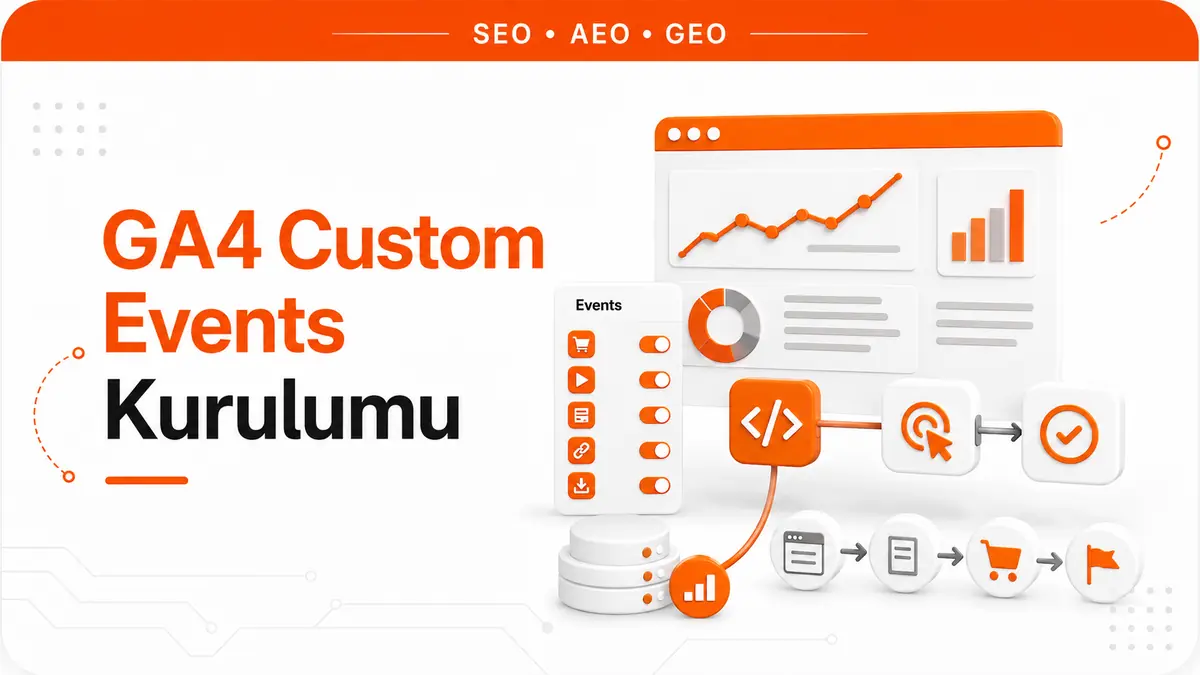
A custom event is a user interaction that GA4 does not collect automatically and that site owners define and measure based on their own business goals. As of 2026, Universal Analytics has been fully retired, and GA4's event-based data model is now the only standard for web analytics. That shift made custom event configuration a required part of the technical foundation for measuring SEO performance.
The Core Architecture of the GA4 Event Model
GA4 records every user interaction as an event. Each action, including page views, scrolls, clicks and form submissions, is an event object. This model is fundamentally different from the pageview-centric structure of Universal Analytics. Every event consists of a name (the event name) and the parameters attached to it (event parameters).
The event hierarchy has four layers: automatically collected events (first_visit, session_start), enhanced measurement events (scroll, click, file_download), recommended events (login, purchase, sign_up) and custom events. The first two layers require no configuration. The third layer follows predefined naming rules. The fourth layer measures interactions that the site owner defines entirely around their own business logic.
Scope and Limits of Automatically Collected Events
GA4 collects certain events automatically without any additional code. page_view, first_visit, session_start and user_engagement fall into this category. When Enhanced Measurement is enabled, scroll, click (outbound), file_download, video_start and video_progress events are also recorded automatically.
However, automatic events have a limited scope. The scroll event only fires when the user reaches 90 percent of the page; intermediate scroll depths (25, 50, 75 percent) are not recorded. The click event only covers outbound link clicks; internal links and button clicks are not tracked. These limits show why custom events are essential for measuring SEO performance.
Custom Event Naming Rules and Standards
Event names should be written in snake_case, with no spaces, hyphens or uppercase letters, and can be up to 40 characters long. Non-ASCII characters (such as Turkish letters) technically work but can cause problems in reporting and API integrations, so English names are the safer choice.
Wrong format: CTA-Click, Scroll Depth, formSubmit. Correct format: cta_click, scroll_depth, form_submit. When custom event names clash with GA4's recommended event names (purchase, login, sign_up), data conflicts occur. Custom event names must not clash with GA4's recommended event list; otherwise mixed-up parameters and reporting errors are inevitable.
Sending Custom Events with gtag.js
gtag.js, GA4's JavaScript library, uses the gtag('event', ...) function to send custom events. Each event call takes an event name and an optional parameters object:
gtag('event', 'cta_click', {
  button_text: 'Get a Quote',
  button_location: 'hero_section',
  page_path: window.location.pathname
});
This call creates an event named cta_click and attaches three parameters. Once the parameters are registered in GA4 as custom dimensions, they can be used for filtering and segmentation in reports. Parameter names must also be in snake_case and stay within the 40-character limit. Each event can carry up to 25 parameters.
Customizing Scroll Depth Tracking
GA4's default scroll event only records the 90 percent threshold. For SEO performance measurement, tracking the 25, 50, 75 and 100 percent thresholds separately allows a much more detailed analysis of content engagement. These thresholds can be customized with the Intersection Observer API:
const thresholds = [25, 50, 75, 100];
const triggered = new Set();

function getScrollPercentage() {
  const scrollTop = window.scrollY;
  const docHeight = document.documentElement.scrollHeight - window.innerHeight;
  return Math.round((scrollTop / docHeight) * 100);
}

window.addEventListener('scroll', () => {
  const pct = getScrollPercentage();
  thresholds.forEach(threshold => {
    if (pct >= threshold && !triggered.has(threshold)) {
      triggered.add(threshold);
      gtag('event', 'scroll_depth', {
        percent_scrolled: threshold,
        page_path: window.location.pathname,
        content_length: document.querySelector('article')?.innerText.length || 0
      });
    }
  });
}, { passive: true });
The content_length parameter lets you relate scroll depth to content length. A 100 percent scroll on a short page is not meaningful. A 75 percent scroll on a long guide, on the other hand, is a strong engagement signal. Without this context, scroll depth on its own is misleading.
Tracking CTA Button Clicks
Measuring the click performance of conversion-focused buttons is essential for proving the impact of SEO on business results. Instead of assigning a separate event to each CTA button, it is more efficient to capture all CTA clicks with a single listener using the delegation pattern:
document.addEventListener('click', (e) => {
  const cta = e.target.closest('[data-cta]');
  if (cta) {
    gtag('event', 'cta_click', {
      cta_text: cta.textContent.trim().substring(0, 50),
      cta_type: cta.dataset.cta,
      cta_location: cta.dataset.location || 'unknown',
      page_path: window.location.pathname
    });
  }
});
On the HTML side, data-cta and data-location attributes are added to the CTA buttons:
<button data-cta="primary" data-location="hero">Try It Free</button>
<a href="/contact" data-cta="secondary" data-location="footer">Contact Us</a>
With this approach, adding new CTA buttons does not require updating the JavaScript code. Every element carrying the data-cta attribute is tracked automatically. The delegation pattern also catches elements added to the DOM later and works smoothly in SPA architectures.
Configuring Form Interaction Events
Form performance is the primary way to measure the lead generation impact of SEO. Tracking form submissions alone is not enough. Tracking form focus, field completion and abandonment with separate events provides the data needed for form optimization:
document.querySelectorAll('form[data-track]').forEach(form => {
  let formStarted = false;

  form.addEventListener('focusin', () => {
    if (!formStarted) {
      formStarted = true;
      gtag('event', 'form_start', {
        form_id: form.id || form.dataset.track,
        page_path: window.location.pathname
      });
    }
  });

  form.addEventListener('submit', (e) => {
    gtag('event', 'form_submit', {
      form_id: form.id || form.dataset.track,
      page_path: window.location.pathname,
      field_count: form.querySelectorAll('input, select, textarea').length
    });
  });
});
The ratio of form_start to form_submit events gives you the form abandonment rate. A 70 percent start rate with a 20 percent submission rate means the form is abandoned 71 percent of the time. This data identifies which forms need optimization.
Tracking Internal Site Search
Internal search data reveals what users are looking for and whether the existing content structure meets that need. GA4's automatic site search tracking works when the URL contains standard query parameters such as q, s or search. However, this automatic detection fails with custom search systems or AJAX-based search.
A custom search event is configured as follows:
document.querySelector('.search-form').addEventListener('submit', (e) => {
  const query = document.querySelector('.search-input').value.trim();
  if (query.length > 0) {
    gtag('event', 'search', {
      search_term: query.substring(0, 100),
      results_count: parseInt(document.querySelector('.result-count')?.textContent) || 0,
      page_path: window.location.pathname
    });
  }
});
The results_count parameter makes it possible to detect "zero-result searches." Terms that users search for often but get no results for point directly to content gaps. This data helps identify new article topics during topical map planning.
Tracking Outbound Link Clicks
GA4's enhanced measurement feature records outbound clicks automatically. However, this automatic event offers limited data about which external link was clicked. A customized outbound click event records the destination URL, the anchor text and the link's position on the page:
document.addEventListener('click', (e) => {
  const link = e.target.closest('a[href]');
  if (link && link.hostname !== window.location.hostname) {
    gtag('event', 'outbound_click', {
      link_url: link.href.substring(0, 200),
      link_text: link.textContent.trim().substring(0, 50),
      link_domain: link.hostname,
      link_location: link.closest('article') ? 'content' :
                     link.closest('nav') ? 'navigation' : 'other',
      page_path: window.location.pathname
    });
  }
});
The link_location parameter tells you whether an external link was clicked in the content area or in the navigation. Outbound clicks in the content area show that the user is checking reference sources, while clicks in the navigation indicate that the user is leaving the site. The two cases call for different fixes when optimizing the page experience.
A Content Engagement Score Event
Instead of relying on a single event, a composite event that combines several engagement signals gives you a holistic measure of content performance. Combining scroll depth, time on page and click behavior produces an "engagement score":
let engagementData = {
  scrollDepth: 0,
  timeOnPage: 0,
  clicks: 0,
  startTime: Date.now()
};

window.addEventListener('scroll', () => {
  const pct = getScrollPercentage();
  engagementData.scrollDepth = Math.max(engagementData.scrollDepth, pct);
}, { passive: true });

document.addEventListener('click', () => { engagementData.clicks++; });

window.addEventListener('beforeunload', () => {
  engagementData.timeOnPage = Math.round((Date.now() - engagementData.startTime) / 1000);

  const score = Math.round(
    (engagementData.scrollDepth * 0.4) +
    (Math.min(engagementData.timeOnPage, 300) / 300 * 40) +
    (Math.min(engagementData.clicks, 10) / 10 * 20)
  );

  navigator.sendBeacon('/analytics', JSON.stringify({
    event: 'engagement_score',
    score: score,
    scroll_depth: engagementData.scrollDepth,
    time_on_page: engagementData.timeOnPage,
    clicks: engagementData.clicks,
    page_path: window.location.pathname
  }));
});
This formula gives 40 percent weight to scroll depth, 40 percent to time on page and 20 percent to the number of clicks. Using navigator.sendBeacon ensures that the data is not lost when the page closes. A standard gtag() call in the beforeunload event is not reliable, because the request may not complete before the page closes.
Defining Custom Dimensions and Metrics in GA4
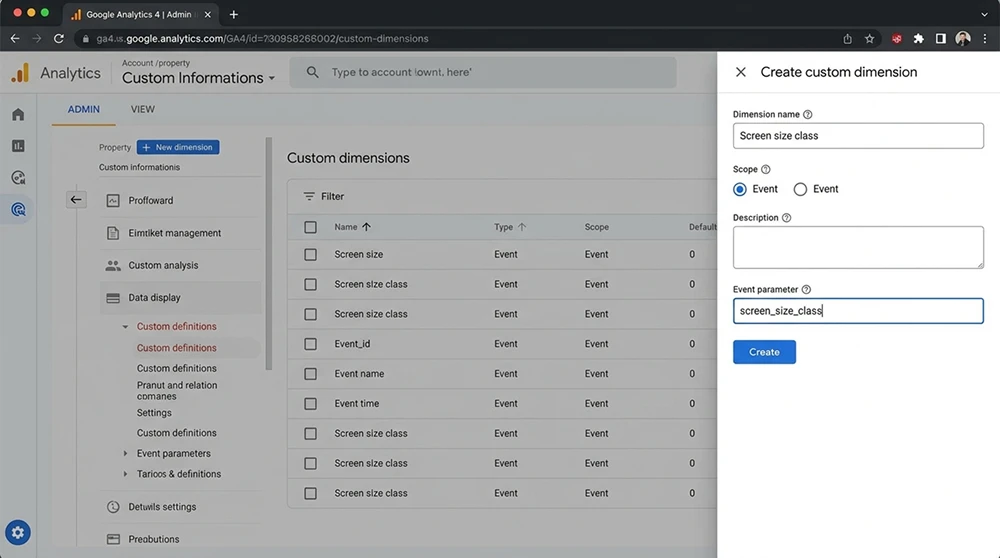
Event parameters are not reported automatically in GA4. For parameters to appear in reports, they must be registered as a custom dimension or a custom metric. You do this under GA4 Admin > Custom definitions > Custom dimensions.
Each custom dimension definition requires three pieces of information: the dimension name (the name shown in reports), the event parameter (the parameter name in the code) and the scope (event level or user level). Event-scoped dimensions carry a separate value for each event. User-scoped dimensions stay constant across all of a user's sessions.
GA4 allows a maximum of 50 event-scoped and 25 user-scoped custom dimensions. This limit makes it essential to plan parameters in advance. Unnecessary parameters should not be registered, and the reporting value of every parameter should be questioned. Once the limit is reached, an existing dimension must be archived before a new one can be added.
Managing Events with Google Tag Manager
Managing events through Google Tag Manager (GTM) instead of writing JavaScript directly allows non-technical team members to configure events as well. In GTM, a "Tag" is created for each event, firing conditions are set with a "Trigger", and parameters are passed through the data layer (dataLayer).
Using the dataLayer is the standard method for passing event data to GTM:
dataLayer.push({
  event: 'cta_click',
  cta_text: 'Get a Quote',
  cta_type: 'primary',
  cta_location: 'hero_section'
});
In GTM, a Custom Event Trigger is created to catch this dataLayer event. A GA4 Event Tag attached to the trigger forwards the parameters to GA4. This layered structure separates analytics code from site code and decouples the deployment process. New events can be added from the GTM interface without developer involvement.
Expert Note: Data That Never Shows Up in Reports but Changes Decisions
Here is where that hidden, decision-changing data lives: most sites install GA4, define a few events and then never look at the reports. It is the situation we run into most often in the field. Event data gets collected but never analyzed. The real value is not in defining events but in reviewing the data regularly and acting on it. Set up a weekly routine: every Monday, check last week's average scroll depth, CTA click rate and form abandonment rate. The trend of these three metrics grounds content strategy decisions in data. Collecting data is easy; making decisions with data takes discipline.
A Template for SEO Performance Events
The core event set for an SEO-focused GA4 configuration is as follows:
- The scroll_depth event fires at the 25, 50, 75 and 100 percent thresholds and measures the quality of content engagement.
- The cta_click event tracks all conversion buttons and calculates how much organic traffic turns into business results.
- The internal_link_click event records internal link clicks and shows how effective the internal linking strategy is.
- The search_no_results event captures zero-result internal searches and identifies content gaps.
- The toc_click event tracks table of contents clicks and reveals which sections attract the most interest.
These five events are the minimum configuration needed to measure SEO performance from a user behavior perspective.
Event Parameter Planning and Data Schema
The entire parameter structure should be planned before events are defined. For each parameter, the data type (string or numeric), the maximum length and the possible range of values should be specified. Adding parameters without a plan produces inconsistent data in reports and reduces the reliability of the analysis.
Documenting the parameter schema in JSON format is a standard approach:
{
  "event_name": "cta_click",
  "parameters": {
    "cta_text": {
      "type": "string",
      "max_length": 50,
      "description": "Button text",
      "example": "Get a Quote"
    },
    "cta_type": {
      "type": "string",
      "allowed_values": ["primary", "secondary", "tertiary"],
      "description": "Button priority level"
    },
    "cta_location": {
      "type": "string",
      "allowed_values": ["hero", "sidebar", "footer", "inline"],
      "description": "Position of the button on the page"
    }
  }
}
This schema becomes a shared reference document between the development team and the analytics team. Before a new event is added, the schema is updated and approved by all stakeholders.
Validating Events with DebugView
GA4's DebugView lets you check in real time whether events are being sent correctly. You will find it under Admin > DebugView. To activate it, either install the "GA Debug" browser extension or add the debug_mode: true parameter to your gtag configuration:
gtag('config', 'G-XXXXXXXXXX', {
  debug_mode: true
});
When DebugView is open, incoming events appear instantly on a timeline. Clicking an event lets you inspect its parameters and values in detail. Typos in parameter names, missing values and incorrect data types are caught at this stage. Remember to remove the debug_mode parameter in production; otherwise all users will be flagged as debug traffic.
Marking Events as Conversions
Marking specific events as conversions makes them stand out in GA4 reports and appear in conversion reports. On the GA4 Admin > Events page, turn on the "Mark as conversion" toggle next to the relevant event.
Conversion marking does not apply retroactively. Data is recorded as a conversion only from the moment the toggle is turned on, and historical data does not appear in conversion reports. That is why it is critical to define conversion events when the site launches. GA4 lets you mark up to 30 events as conversions, so only events that reflect real business goals should make the cut.
Cross-Domain Event Tracking
In site structures that use more than one domain (main site + blog subdomain + e-commerce subdomain), a cross-domain configuration is needed to keep event tracking consistent. The relevant domains are added under GA4 Admin > Data Streams > Web > Configure tag settings > Configure your domains.
Without a cross-domain configuration, a new session starts when the user moves from one domain to another, and event data becomes fragmented. Once the configuration is complete, the user is tracked under a single session across all domains, and events are reported within one consistent user journey. The _gl query parameter is added automatically during domain transitions to carry the user identifier.
Securing Events with Server-Side Tagging
Client-side event sending can be blocked by ad blockers and browser privacy settings. As of 2026, close to 30 percent of users run an ad blocker, and these tools block GA4 requests too. Server-side tagging overcomes this blocking by sending event data first to your own server and then to GA4.
A Google Tag Manager Server Container processes event data on the server side:
// Client side: send the data to your own server
fetch('/collect', {
  method: 'POST',
  headers: { 'Content-Type': 'application/json' },
  body: JSON.stringify({
    event_name: 'cta_click',
    cta_text: 'Get a Quote',
    page_path: window.location.pathname,
    client_id: getClientId()
  })
});
On the server side, this data is forwarded to GA4 through the GA4 Measurement Protocol. This approach increases the data collection rate by 15 to 25 percent. It also prevents sensitive event parameters (user segment, customer type) from being exposed on the client side.
Sending Server-Side Events with the Measurement Protocol
The GA4 Measurement Protocol is used to send events from the server with an HTTP POST request. This method makes it possible to record events in environments where JavaScript does not run (email opens, CRM triggers, server-side operations):
import requests

def send_ga4_event(measurement_id, api_secret, client_id, events):
    url = f'https://www.google-analytics.com/mp/collect?measurement_id={measurement_id}&api_secret={api_secret}'

    payload = {
        'client_id': client_id,
        'events': events
    }

    response = requests.post(url, json=payload)
    return response.status_code

send_ga4_event(
    measurement_id='G-XXXXXXXXXX',
    api_secret='your_api_secret',
    client_id='user_123.456',
    events=[{
        'name': 'server_event',
        'params': {
            'action': 'pdf_download',
            'document_title': 'SEO Guide 2026'
        }
    }]
)
The API secret is created under GA4 Admin > Data Streams > Measurement Protocol API secrets. Measurement Protocol events do not appear in DebugView. To verify them, use the separate validation endpoint: send test requests to /debug/mp/collect instead of /mp/collect.
Event Data Quality Checks and Error Detection
Event data quality should be audited regularly. The GA4 Admin > Data quality section reports thresholded data and data gaps. This automatic check is not enough on its own, though, so a manual audit routine should be in place as well.
Weekly checklist: verify in DebugView that events fire as expected. Check whether parameters carry the correct values. Watch for sudden drops or spikes in event volume. A sudden drop can indicate that the event code broke during a deployment. A sudden spike points to bot traffic or a repeated firing bug.
Advanced Analysis of GA4 Event Data with BigQuery Export
GA4's built-in reports are sufficient for basic analysis, but BigQuery export is used for advanced segmentation and cross-event analysis. Daily data export is configured through the GA4 Admin > BigQuery link. In BigQuery, a separate table is created for each day, giving access to raw event-level data.
BigQuery export gives access to raw event data without running into the sampling and reporting limits of the GA4 interface. SQL queries on event chains, user journeys and funnels produce insights that go beyond standard reports.
Designing an Event-Based SEO Dashboard
Presenting the collected event data in a meaningful dashboard makes data-driven decisions easier. Custom reports can be built in GA4's Explore section. For more flexible and shareable dashboards, however, Looker Studio (formerly Data Studio) integration should be preferred.
The minimum metrics an SEO-focused dashboard should include: organic traffic trend, average scroll depth (per page), CTA click rate (from organic traffic), form abandonment rate, internal search terms and zero-result search rate. Showing these metrics as weekly trend lines helps you spot performance changes early.
Privacy- and GDPR-Compliant Event Collection
User privacy regulations directly affect event collection strategy. Under GDPR and KVKK (Türkiye's personal data protection law), event parameters containing personal data should only be collected after user consent is obtained. GA4's consent mode feature automatically adjusts data collection behavior according to consent status:
gtag('consent', 'default', {
  analytics_storage: 'denied',
  ad_storage: 'denied'
});

// After the user grants consent
function onConsentGranted() {
  gtag('consent', 'update', {
    analytics_storage: 'granted'
  });
}
When analytics_storage is set to 'denied', GA4 runs without cookies and event data is collected in anonymized form. After the user grants consent, the status switches to granted and full data collection begins. This configuration strikes a balance between legal compliance and the scope of data collection.