What is Google's Rich Results Test and where do you open it?
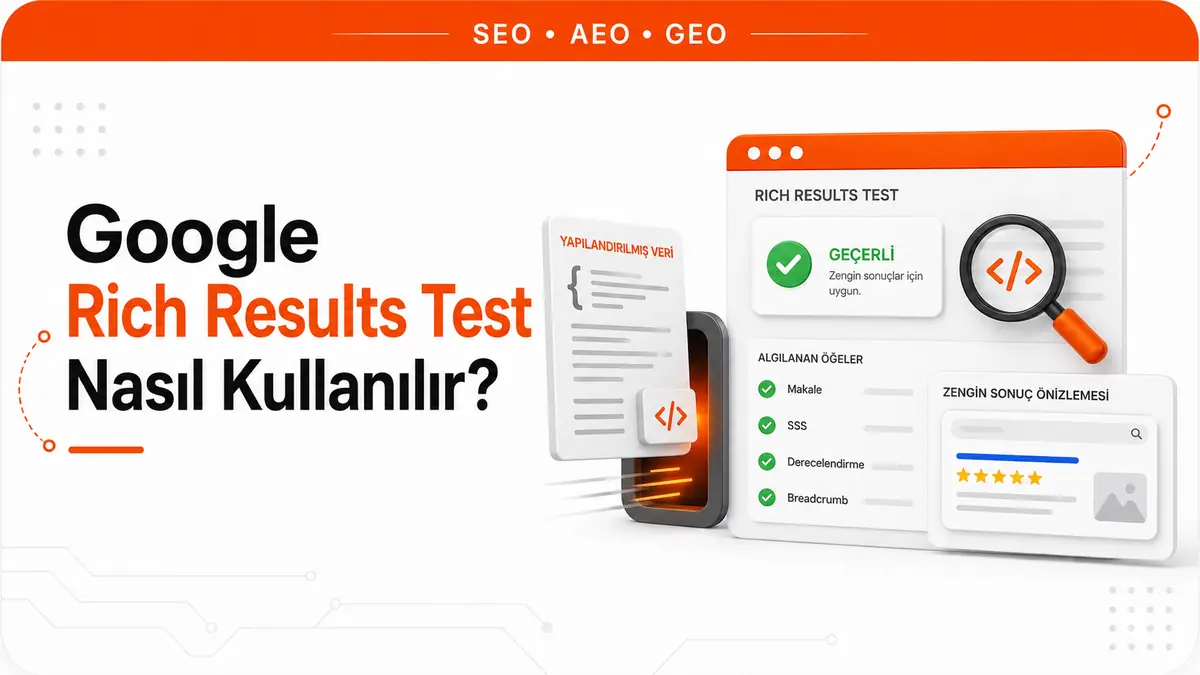
Google's Rich Results Test is a free Google tool that checks whether a page carries structured data eligible for one of the rich result types Google supports. The tool is provided by Google and runs at this address: search.google.com/test/rich-results.
Open Google's Rich Results Test (Google's official tool, opens in a new tab).
The tool works in two modes: URL mode for a live page and code mode for markup that has not been published yet. The results screen reports findings as valid items, warnings and errors. A valid result only means eligibility; it is not a guarantee that Google will show that rich result in search results.
What exactly does the green check confirm?
The green check you see after testing your page says only one thing: this page contains structured data written in a form eligible for one of the rich result types Google supports. A red error also says only one thing: that data does not meet the structure Google expects for that type.
This distinction matters more than it seems, because it means there are three often-confused things the tool does not measure. It does not measure the quality of your page, it says nothing about your rankings and it makes no promise that the rich result will appear in search results. The only thing it measures is eligibility. A rich result is the visual enhancement layered on top of the plain blue link in a search result: a star rating, a price, a recipe cooking time, a job posting card. For that enhancement to appear, the page needs a machine-readable data layer, and this tool only checks that layer.
The output is read in three layers. At the top is the crawl status and how many items were found. In the middle, the status of the required and recommended fields is listed for each detected type. At the bottom is a preview of how the rich result might look. The layer to look at when making decisions is the list in the middle; the line at the top is only a summary, and the preview at the bottom is just a possibility.
Two ways to run the test, and the right order
The tool works in two modes, and which one you choose changes what you learn. URL mode crawls the live page as Google sees it. Code mode lets you paste and try a markup block you haven't put anywhere yet. Step by step:
- Open the tool page. If you are checking a live page, enter the full address in the URL tab. If you are checking markup you haven't published yet, switch to the Code tab and paste the block.
- Choose the crawler bot from the list below the input box. The default is the smartphone bot; you switch to the desktop bot manually. Because Google primarily uses the mobile version of pages, testing without changing the default is the right choice in most cases.
- Run the test and look at the crawl line first. If the page could not be reached at all, none of the information about structured data is meaningful; fix the access problem first.
- Open the list of detected items. Each type has its own status, and an error in one type does not invalidate another.
- Expand an error or warning row and click the description. The tool takes you to the relevant line in the code explorer. The explorer shows the rendered code, not the raw source code; this is where you see whether markup added later with JavaScript is actually being read.
- Make the fix and run the test again. In code mode you can edit the block on the same screen and rerun it, which is why code mode is faster during development.
All three formats are read: JSON-LD, Microdata and RDFa. URL mode's only strict requirement is that the page and the resources it uses are accessible to an anonymous visitor. A page behind a login wall, a password or your local machine cannot be tested, because the tool arrives with Google's own inspection bot, not with your session.
There is a trap here that most guides skip. In code mode, the tool ignores comment lines inside the JSON-LD block. However, the JSON-LD standard does not accept comments. So a block with comments may pass this test cleanly while the same block throws an error on the real page. Removing comments before going live is the cheapest way to keep the test from giving you false confidence.
What do the phrases in the status line mean?
The single line at the top summarizes the whole page and takes a few different forms. It combines how many items were found, whether they are valid and whether they carry warnings. In practice, these are the states you will see:
- Valid items detected. The markup could be read and the required fields are complete. Nothing to do.
- Valid items detected, with warnings. The item is eligible, but some recommended fields are missing. A rich result may appear, but a weaker one.
- Some items are invalid. There is more than one type on the page and at least one does not meet a required field. The other types are not affected.
- No items detected. There is no rich result type Google recognizes on the page. Either there is no markup at all or an unsupported type has been used.
- Syntax error detected. The parser stopped before it could read the block. In this case the tool cannot even determine the type, and errors are grouped under the heading "syntax errors in items of unknown type".
- URL cannot be crawled. The problem is not in the structured data but in access. The table below covers this group.
Why is the difference between an error and a warning critical?
An error means the item is not eligible for a rich result. A required field is missing or the structure is broken; until it is fixed, that item is not considered at all. A warning, on the other hand, says the item is eligible but some recommended fields are missing. A rich result may appear, just with less information.
In practice, the distinction translates into a prioritization rule: close errors first and deal with warnings later. When closing warnings, the reflex of filling in every recommended field you can think of is not the right one either. Google's own guidance is clear on this point: a small number of recommended fields filled in completely and accurately is better than many fields filled in halfway. In other words, leaving a field empty is less harmful than filling it in incorrectly.
Common error messages and what they really mean
Error texts may be translated depending on your interface language, but what will help when you search is the original wording Google uses. The most common ones and the real problem behind them:
| Error | What is really happening | Fix |
|---|---|---|
| Invalid JSON document | There is a syntax error at the top level of the block; the parser could not even start. | Run the block through a JSON validator and repair the bracket structure before looking at the type name. |
| Parsing error: Missing ',' or '}' | A comma or closing curly brace is missing. Usually it is an extra comma left after the last item or the remnant of a deleted line. | Don't leave a comma after the last field, and count the brackets at the end of the block. |
| Parsing error: Missing ':' | The colon between the field name and the value has been dropped. | Add a colon after the field name on the relevant line. |
| Incorrect value type | The field carries a value of a different type than expected, for example text where a number is expected. | Check the expected value type in that type's documentation and convert the value. |
| Invalid number | A non-numeric value has been written in a field that expects a number. Adding a currency symbol to the price field is the classic example. | Separate out the symbol and spaces and provide the value as a pure number. |
| Bad escape sequence in string | There is an invalid escape character inside a text value. It usually happens when quotes are used inside quotes. | Escape the quotes inside the text or switch them to single quotes. |
| Duplicate unique property | A property that should be defined only once appears twice, for example two separate context definitions. | It usually comes from the theme and a plugin generating the same block; turn off one of the sources. |
| Invalid top level element | The element at the top level of the block is invalid. The structure is read, but it is not a root element Google recognizes. | Verify that the type definition at the root level is written correctly. |
| Reference to nonexistent item | In Microdata, a reference points to an ID that does not exist. | Check that the referenced ID is actually defined on the page. |
| URL cannot be crawled / Crawl allowed: No | The page has been closed to crawling with a robots.txt rule or a noindex directive. | Verify that the inspection bot is not blocked. If the page cannot be crawled, the structured data is not being read at all. |
| Hostload exceeded | The server is at the limit of its capacity for Google's crawl and inspection requests. | Try again when the load drops; if it keeps happening, look at your server resources. |
| Page resources could not be loaded (warning) | Some of the images, stylesheets or script files the page uses could not be reached. The file may have been deleted, may be slow or may be closed to the crawler bot. | Find the missing resource and open it up. While this warning is present the test may give a different result on every run, so don't base your conclusion on a single run. |
The last row causes more headaches than you would think. When you test the same page twice and get two different results, the first thing to suspect is not the markup but the resources that failed to load on that run.
Why is a valid result not a promise of a rich result?
What is measured is eligibility, not display. Structured data is a necessary condition for a rich result, not a sufficient one. Google decides whether to show a rich result on a per-query basis; the same page may appear with a card in one search and as a plain link in another. The quality of the page, the nature of the query and the user's context all affect that decision.
The practical takeaway is this: if no rich result appears after you get a valid result, there is no point in running the tool again and again. The tool has already told you everything it can. From there on, the problem is on the content and trust side, not on the markup side.
Supported types and the ones dropped from the list
The tool checks the rich result types Google supports, and this list is not fixed. The types currently checked can be roughly grouped as follows:
- E-commerce: Product snippet, Merchant listings, Review snippet, Return policy, Shipping policies, Loyalty program
- Organizational identity and navigation: Organization, Local business, Breadcrumb, Profile page, Carousel
- Publishing and content: Article, Video, Image metadata, Discussion forum, Paywalled content, Subscribed content, Dataset
- Education: Course list item, Education Q&A, Practice problems, Math solvers, Q&A page
- Services and events: Event, Job posting, Employer aggregate rating, Recipe, Movie, Hotels, Vacation rental, Software app
What is not on this list is as instructive as what is. FAQ markup and HowTo markup (for step-by-step instructions) no longer produce rich results and have also been dropped from the tool's type list. Most Turkish-language resources still give the advice "add FAQ markup to the page to expand your SERP real estate"; that advice no longer delivers anything.
You don't need to rip existing markup out of your site either. In Google's own words, unused structured data does not cause problems for search; it simply has no visible effect. In other words, it does no harm, it just does no work. Spending time on it for new pages, however, is unnecessary.
Three things the tool does not test
The eligibility check has limits, and not knowing them leads to reading a clean test result more broadly than it deserves.
It does not check consistency between the data and the page. Writing "4.8 rating, 234 reviews" in the markup while having a single review on the page is syntactically error-free and passes the test. However, it is a guideline violation and will catch up with you in a manual review. This check is done by a human: you need to verify one by one that every piece of information in the markup is actually visible on the page.
It does not validate the full Schema.org standard. It only evaluates the types for which Google produces rich results. If a field Google ignores is wrong according to the standard, the tool stays silent about it. Schema Markup Validator is a separate tool for checking the standard as a whole. The opposite is also possible: markup that is valid according to Schema.org may fail this test because Google requires additional fields.
It does not monitor continuously. It is a snapshot of a single page at a single moment. Checking the whole site by entering URLs one at a time does not scale; to crawl the entire page inventory from a technical standpoint, you need a holistic audit step such as an on-page SEO analysis. A single template change can break the markup on hundreds of pages at once, and you won't notice it with a single-page test.
Does structured data increase AI citations?
Two levels need to be kept apart here, because the same markup behaves very differently on each.
For classic rich results, it works. Star ratings, prices, recipe cards, job posting boxes: none of these appear without structured data. The mechanism is direct, and this tool exists precisely for this level. This is where the time you invest pays off.
For AI citations, there is no evidence. In its first analysis of six million URLs, Ahrefs found that pages cited in AI answers were about three times as likely to carry JSON-LD as pages that were not cited. On its own, this finding is misleading, because sites that use markup are already better maintained, produce stronger content and earn more links. A second study was set up to separate correlation from causation: 1,885 pages that added markup later were matched with similar pages that never added it, and the change in citations over the 30 days before and after was compared. The result points to no meaningful increase on any platform: a small 4.6 percent decline relative to the control group on Google AI Overviews, and increases of 2.4 percent on AI Mode and 2.2 percent on ChatGPT that are too small to distinguish from chance. Four separate tests run side by side pointed the same way.
The result should not be stretched beyond its scope. All the pages in the experiment were already heavily cited before the markup was added, meaning they were already in the systems' evaluation pool. The study therefore does not answer the question "does a page that is not yet visible at all get into the pool thanks to markup?" The markup types were also pooled together, and a 30-day window may miss slow effects. Still, the direction is clear: markup earns rich results; it does not buy citations. How AI visibility works is a separate topic, covered in the article explaining what GEO is. Advice that sells markup as an AI visibility lever is worth looking at in light of this experiment's result.
After testing, you monitor the site, not the page
The Rich Results Test is a development-stage tool. Once you go live, the question is no longer "is this block correct?" but "on how many pages did this block break?" Google's own guidance separates these two stages as well: test with this tool while developing, and monitor with the rich result status reports after going live. The reason is clear, because markup usually breaks not at the moment it is written but when something changes on the template or server side.
The rich result reports in Search Console show the whole site type by type: how many pages are valid, how many have warnings and how many have errors. Mass breakages that a single-page test cannot see show up here. Reading the report's numbers correctly is a separate skill; the article on reading Search Console data details which metric counts what. The practical rule: after a template, theme or plugin update, test one representative page for each type individually and track the rest from the report.
Frequently Asked Questions
Is test history saved?
Yes, the code and status of a test you run are kept for about 90 days, and you can come back to it if you bookmark the page address after the test. The point to keep in mind is that anyone who knows the address can access these links. If you tested the markup of an unpublished page, take that into account when sharing the link.
Can a password-protected or local page be tested?
Not in URL mode. The tool comes to the page as an anonymous visitor and cannot reach a page that requires a login or only runs on your own machine. There are two solutions: paste the markup and test it in code mode, or use a tunnel that temporarily exposes the local page to the outside.
Which bot does the tool use to crawl my page?
Google's inspection bot, not your session. Blocking this bot in robots.txt is enough to stop the test from working. If the page is crawled but some resources are blocked, the test runs; you just get a missing resource warning, and the result may change from run to run.