When traffic drops sharply, the first thing someone says in the meeting is usually the same: "We got a Google penalty." That statement is almost always a misdiagnosis, and proving it wrong takes a few seconds.
What people commonly call a penalty, something Google applies directly to a site, does exist, and its official name is a manual action. Its defining feature is that it is not hidden. When a reviewer at Google decides that pages on a site do not comply with the spam policies, that decision shows up in the Manual actions report in Search Console and in the account's message center. If there is a manual action, you will see it. If it does not appear in the report, there isn't one.
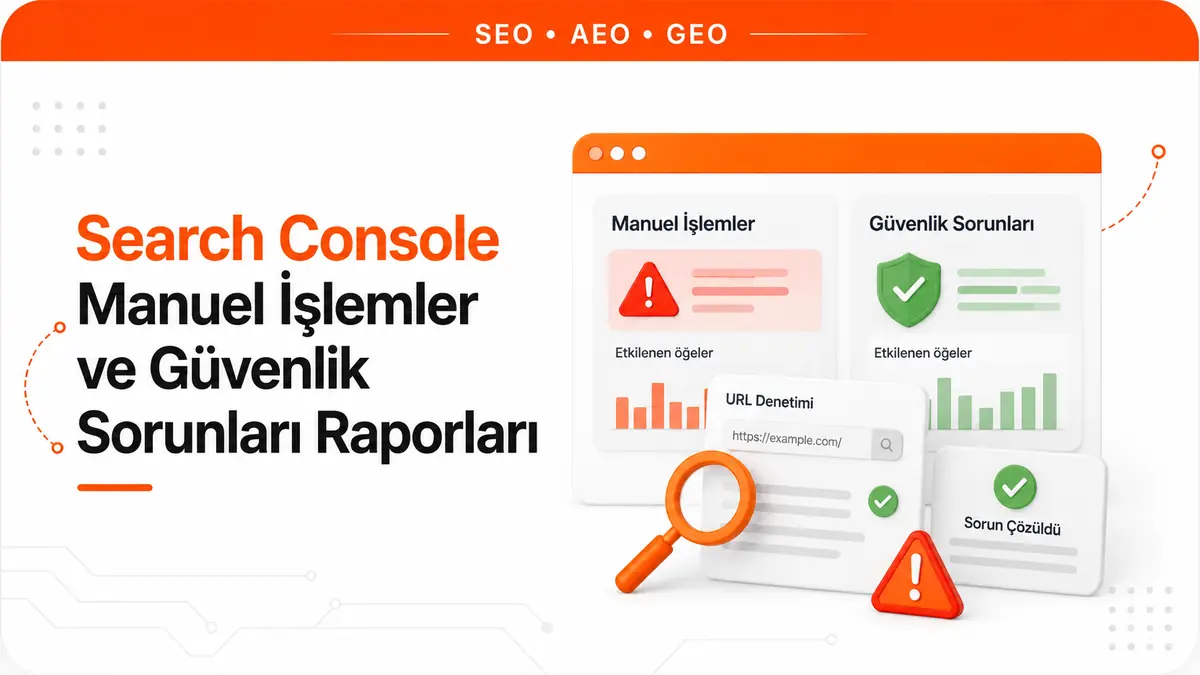
That is why the first step in diagnosing a drop is not guessing but opening two reports. Together, the Manual actions and Security issues reports definitively settle the question "did we get penalized?" If both are clean, that question is closed and the diagnosis continues with the real causes of a traffic drop.
A Manual Action Is a Human Decision
What sets a manual action apart from everything else is that the decision is made by a person, not an algorithm. A Google reviewer looks at the pages, compares them against the spam policies and, if a violation is found, applies an action against the site. Most actions target attempts to manipulate the search index.
The result is usually silent. Most of the issues reported in the Manual actions report cause pages or the whole site to be demoted or removed from search results without any visual warning shown to users. Visitors notice nothing; the site owner only sees traffic disappearing. The only place that carries the notification is Search Console.
Algorithmic evaluation is an entirely different mechanism and has no counterpart in any report. Rankings can change and traffic can fall after an update, but that is not an action, so there is nothing to lift and no one to appeal to. Telling the two situations apart completely changes what you should do next.
| Distinguishing question | Manual action | Security issue | Algorithmic drop |
|---|---|---|---|
| Who makes the decision | A reviewer at Google | Google's security detection systems | Automated ranking systems |
| Is it reported in Search Console | Yes, in the report and the message center | Yes, in the report and the message center | No, it does not appear in any report |
| Do users see a warning | In most cases, no | Yes, a label in results or an interstitial in the browser | No |
| Effect | Demotion or removal from results | Warning, demotion or removal | Ranking changes |
| Path to recovery | Fix and request reconsideration | Clean up and request a security review | No appeal mechanism |
Where to Find the Manual Actions Report and How to Read It
The report is in Search Console's left-hand menu under Security & Manual Actions. If there is no manual action on your site, you will see a green check mark at the top of the report along with a message saying so. If there is an action, the number of actions is shown at the top and each one is listed as a separate row.
The real information appears when you expand a row. The panel that opens shows the type of action, a short description and the affected page patterns. The affected portion can be a subset of the site or the whole site. For example, if the panel shows a pattern like https://example.com/real-estate/, some or all of the pages under that directory are affected. Not every page matching the pattern is necessarily affected. A description of "Affects all pages", on the other hand, means the entire site is covered.
The report also has a history. Because you can view actions the site received and had lifted in the past, this is also where you see the history of a project you have taken over. It is the fastest way to find traces of an old spam record on a site that appears to be starting from scratch.
What Types of Manual Actions Are There?
Google lists the manual actions that can be applied one by one in its own help documentation and gives separate fix steps for each. The types fall roughly into five groups.
- Link-related actions: unnatural links to your site and unnatural links from your site. The first concerns artificial link schemes built from outside; the second concerns sold or manipulative links you give out.
- Content-related actions: thin content with little or no added value, user-generated spam, third-party spam and site abuse, and site reputation abuse.
- Hiding and redirect actions: hidden text and keyword stuffing, cloaking and sneaky redirects, sneaky mobile redirects, cloaked images and back button hijacking.
- Markup and technical mismatch actions: structured data issues and AMP content mismatch. The structured data category is detailed on its own; it includes separately defined violations such as page content differing from the markup, a non-product item being marked up as a product, or the service provider having written its own review.
- Scope and publishing actions: major spam problems, spammy free hosts, and policy violations specific to the News and Discover surfaces.
A common mistake needs correcting here. A hacked site is not among the manual action types. Hacked content is handled in a separate place, the Security issues report. So a site owner whose site has had a hacklink planted on it will most likely see a clean screen when they check the Manual actions report and leave with a false sense of security. Knowing which report is the right one cuts diagnosis time from days to minutes.
If a link-related action has been applied, the work is clear too. Links that can be removed are removed, and for those that can't, the disavow file comes into play. Google also suggests a middle route: instead of deleting problematic outbound links, you can neutralize them by marking them with a link attribute or by routing them through a page blocked by robots.txt.
How to Fix a Manual Action
The report itself tells you the order of the fix. First expand the description panel and read the affected page patterns, then apply the steps specific to that type via the "learn more" link in the panel.
At this stage there is one critical rule, and skipping it is behind most failed attempts: the issue must be fixed on all affected pages. If you clean up only part of it, you do not get a partial return to search results. The outcome is all or nothing. The same logic applies to sites with more than one manual action; sending a review request before all actions are understood and resolved accomplishes nothing.
In practice, this means not limiting the cleanup to the examples. The page patterns shown in the report tell you where the problem is concentrated, but they do not promise a complete list. The cleanup is not finished until every page generated from the same template, fed by the same plugin or entered through the same author account has been checked.
What to Write in a Reconsideration Request
Once the cleanup is done, use the Request Review button in the report. Google clearly describes three qualities of a good request, and together they effectively give you an outline for the request.
- Explain exactly what the problem was. A concrete description is expected, not a general statement of acceptance: in which section, because of which practice, what type of violation occurred.
- Describe the steps you took to fix the issue. List in order which content was removed, which links were taken down or disavowed, which plugin was disabled and which user account was closed.
- Document the outcome of your work. This is where most requests fall short. Giving examples of bad content you removed and good content you added makes the claim verifiable.
After the request is sent, Google sends a confirmation message that it has been received and notifies you by email when the review is complete. What you should not do in the meantime is resubmit the same request before a final decision on the pending one has arrived.
It also pays to set expectations about timing correctly from the start. According to Google, most reconsideration reviews are completed within a few days to a few weeks. In some cases, such as link-related requests, the review may take longer than usual. This does not mean the cleanup was insufficient; evaluating a link file is slower by nature.
What the Security Issues Report Tells You
The Security issues report lists signs that the site has been hacked, or behavior that could harm visitors or their devices. Google divides these into three categories: hacked content, malware and unwanted software, and social engineering.
Hacked content is content placed on your site without your permission because of security vulnerabilities on the site, and it appears in the report in four separate forms: malware, code injection, content injection and URL injection. On the social engineering side are deceptive pages and deceptive embedded resources; phishing falls under this heading, and possible phishing detected on user login is reported as a separate warning. On the software side are harmful downloads, links to harmful downloads, uncommon downloads and unclear mobile billing.
This is where the most visible difference from a manual action appears. Pages affected by a security issue may be shown with a warning label in search results, or a warning interstitial may appear in the browser when a user tries to visit the page. A manual action silently cuts traffic; a security issue slaps a warning on the brand's face. That is why its commercial damage is faster and deeper.
Not every issue carries the same weight either. Issues are classified as errors or warnings. For example, the uncommon downloads heading does not stop the page from appearing in search results; Chrome only shows a warning when a user tries to download the unknown file for the first time. If Google Safe Browsing verifies that the files are safe, these warnings are lifted automatically.
The Sequence to Follow When a Security Issue Appears
For each issue in the report, Google recommends the same outline: confirm the issue, decide whether you can fix it, clean it up, verify and request a review.
There is a safety warning to heed during the confirmation step. You should avoid opening malware-infected pages directly in a browser, because this kind of software usually spreads by exploiting browser vulnerabilities, and opening the page can harm your own device. In cases like code injection, inspecting the server response is a safer method than viewing the page.
Being unable to reproduce the warning is another common source of confusion. Because Google Safe Browsing shows warnings based on the browsing context, you may never see the same warning yourself. When deciding whether the issue persists, the only reliable source is the Security issues report, not your own observation.
The same cleanup rule as for manual actions applies here. The issue must be resolved across the whole site; fixing only some pages does not bring a partial recovery. If the report lists more than one security issue, do not request a review until all of them are resolved. The absence of example URLs does not mean no pages are affected either; it only shows that Google could not generate examples at that moment. Completing a security review can also take anywhere from a few days to a few weeks.
Sites you take over need an extra step. If a site you recently bought lists issues left behind by the previous owner, first fix the issues, then state clearly in your reconsideration request that you have just acquired the site and that it now complies with the policies. The same approach applies to manual actions.
What It Means If Both Reports Are Empty
If you see a green check mark in both reports, you have a definite piece of information: your site has neither received a manual action nor has a security issue. That does not mean there is no drop. It only means the cause is not a penalty, and that in itself is a very valuable elimination.
From this point, the places to look change. Indexing loss, server and response code problems, page migration or redirect errors, competitor moves, seasonality and algorithm updates are ruled out in turn. None of these comes with an appeal process; all of them are a matter of measuring and fixing. That is why a Search Console data tracking setup put in place before, not after, you notice the drop shortens diagnosis time by showing which query and which page were lost and when.
Opening the reports only in a crisis is another common gap. Manual action and security issue notifications go to the Search Console message center and the account's email address. Making sure these notifications go to an address that is actually read is not a technical detail but an operational necessity, because every day lost on a hacked site has a direct cost.
Frequently Asked Questions
Do previous rankings come back once a manual action is lifted?
Revoking a manual action removes the demotion or removal from results that the action caused. Google makes no commitment that previous positions will return exactly, because rankings are also determined by assessments unrelated to the action. What you should expect is the penalty being lifted, not an automatic rise.
What do you do if a reconsideration request is rejected?
A rejected request usually indicates that the cleanup was incomplete. After the remaining violations are found and resolved, a new request can be sent. Repeating the same request before a decision arrives does not speed up the process, because the pending request is already waiting in the queue.
I don't see a warning in my browser. Has the issue been resolved?
No, that is not proof on its own. Because Safe Browsing warnings are shown based on the browsing context, you may not be able to reproduce the warning. Decide whether the issue persists only by looking at the Security issues report.
If the Manual actions report is empty but traffic dropped, could I still have been penalized?
No. When a manual action is applied, Google reports it both in the report and in the message center. If the report is empty, there is no manual action, and the cause of the drop is algorithmic evaluation, a technical issue or a change in competitive conditions.